


YouTube is the second-largest search engine in the world.
YouTube is the world’s second-largest search engine, with over 20 million videos uploaded daily. Finding the right video can be overwhelming, but YouTube search operators make it simple. These commands help you locate exactly what you need without endless scrolling.
YouTube search operators are simple commands that help you find what you’re looking for faster and more accurately.
If you learn and use a few of these search operators, you can find the exact video you need without scrolling through a ton of videos.
In this post, you’ll discover all the working YouTube search commands that can help narrow down YouTube video results. We tested each operator and added examples with screenshots.
List of Most Useful YouTube Search Operators in 2026
Here are some commonly used YouTube search operators to help you find highly specific videos, either directly on YouTube or using Google search.
| Operator | Function | Example |
|---|---|---|
| " (Quotes) | Finds exact phrases | ChatGPT tutorial" → Videos containing this exact phrase |
| - | Excludes words | SEO -tools → SEO videos excluding “tools” |
| OR | Matches either term | blogging OR vlogging → Videos about blogging or vlogging |
| ` | ` (Pipe) | Same as OR |
| site: | Limits search to YouTube via Google | site:youtube.com AI tools → YouTube videos about AI tools |
| intitle: | Finds keywords in title | intitle:"email marketing" → Videos with “email marketing” in title |
| allintitle: | Finds all keywords in title | allintitle:travel vlog Canada → Videos with all 3 words in title |
| inurl: | Finds keywords in URL | inurl:workout → Videos with “workout” in URL |
| before: | Videos uploaded before a date | travel vlog before:2020-01-01 → Videos uploaded before Jan 1, 2020 |
| after: | Videos uploaded after a date | travel vlog after:2023-01-01 → Videos uploaded after Jan 1, 2023 |
| + | Forces a word to appear | workout +home → Videos including “home” |
| description: | Finds keywords in description | description:"SEO tutorial" → Videos mentioning “SEO tutorial” in description |
| #tag | Finds videos with specific hashtag | #seo → Videos tagged with #seo |
| #..# | Searches number range | website builders 2015..2025 → Videos with years between 2015 and 2025 |
| () | Groups operators | SEO" (Rand Fishkin OR Neil Patel) → Videos about SEO from either expert |
What Are Search Operators?
Search operators are special symbols or words that narrow down search results on YouTube (or Google). They save time and help you find highly relevant videos quickly.
They help you find exactly what you’re looking for, instead of scrolling through unrelated videos or pages.
If you want to enjoy highly relevant YouTube search results instead of random videos, search operators are exactly what you need.
If you want to refine your Google searches the same way, check out this complete guide on Google Search Operators.
How to Use Search Operators on YouTube?
To use search operators on YouTube, simply type them into the YouTube search bar along with your keywords.
For example, you can find exact match keywords by using quotes [“search term”].
You can use “email marketing” to find videos with that exact phrase, or add a – to remove unwanted words.
You can also use Google to refine your results quickly. Just type something like site:youtube.com keto diet plan to search YouTube videos through Google.
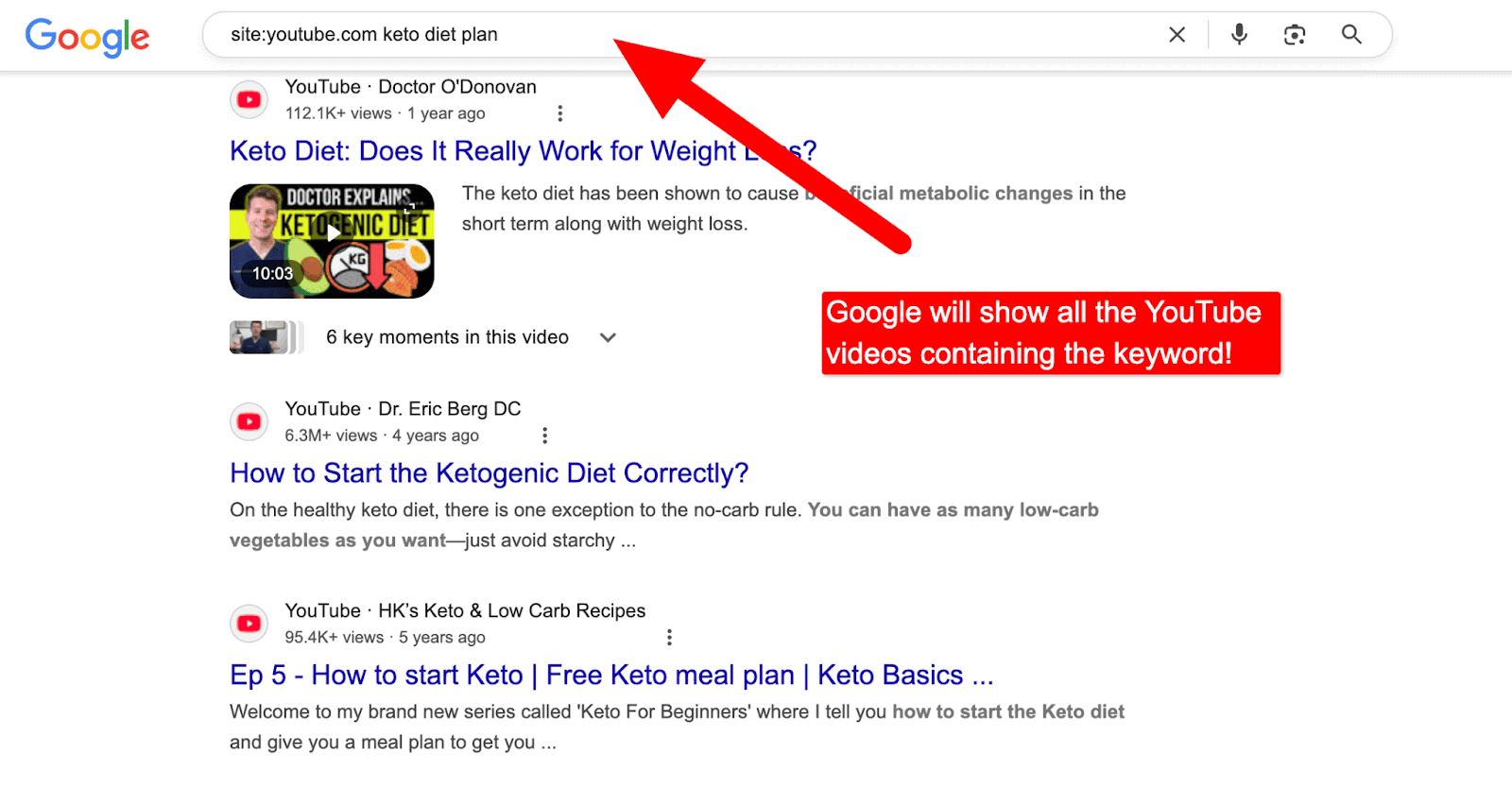
As you can see above, using site:youtube.com with your keywords on Google shows only YouTube videos related to your search. This is a quick way to find the most relevant YouTube content without getting results from other websites.
19 Most Used YouTube Search Operators for 2026
YouTube search seems easy, but finding the right video isn’t. Here are some smart tips and YouTube search commands to help you search more effectively.
The following search operators help you find the right content, trending videos, and browse YouTube quickly.
1. Intitle: Operator
The intitle: operator allows you to find videos that contain a specific word or phrase in the title. This operator is beneficial when you’re looking for tutorials, reviews, or specific topics.
For example, searching intitle:”SEO tutorial” shows only videos that have SEO tutorial in their titles, not just in the description or tags.

2. before:[date] Operator
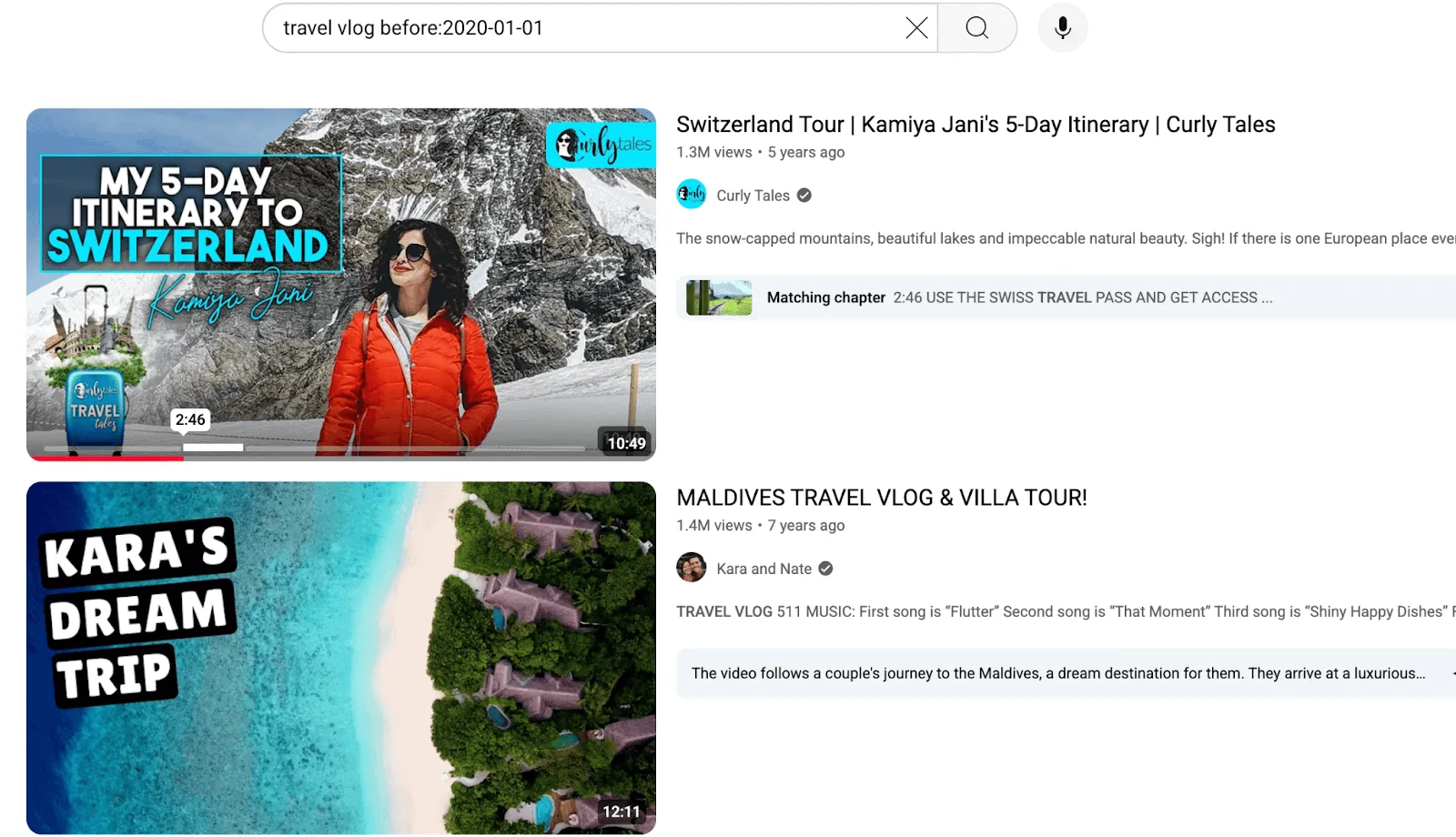
The before: YouTube search operator shows only videos uploaded before a specific date.
Example: Searching travel vlog before:2020-01-01 will show you only those travel vlogs posted before January 1, 2020.
Looking to save time and learn smarter ways to search? Don’t miss these Google Search tips and tricks.
3. after:[date] Operator
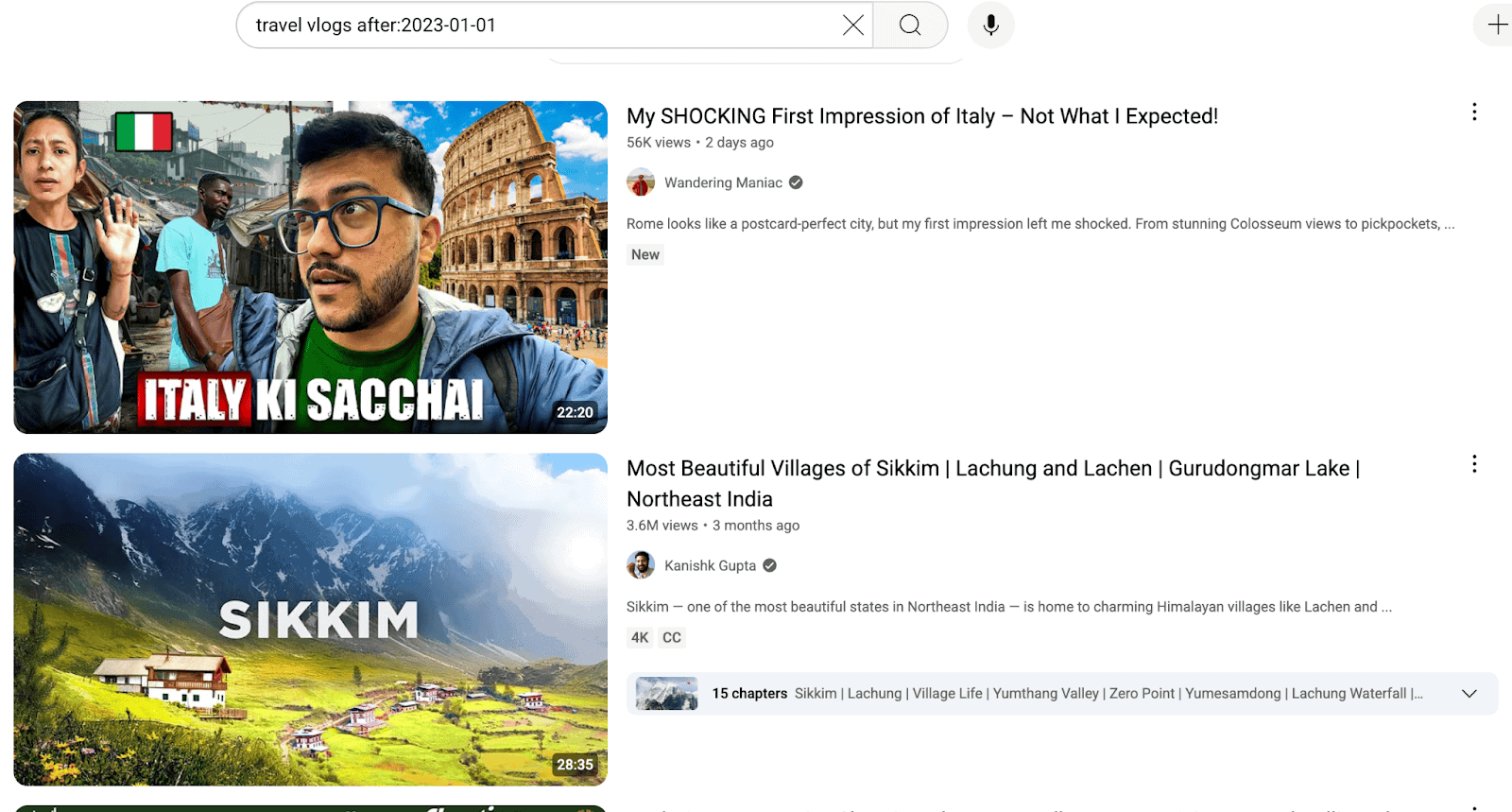
Similarly, the after: operator shows only videos uploaded after a specific date.
Example: Searching travel vlogs after:2023-01-01 will display travel videos posted after January 1, 2023.
4. allintitle: Operator
The allintitle: operator finds videos that include all the keywords in the title.
Example: Searching allintitle:travel vlog Canada will show only videos that have travel, vlog, and Canada in their titles.
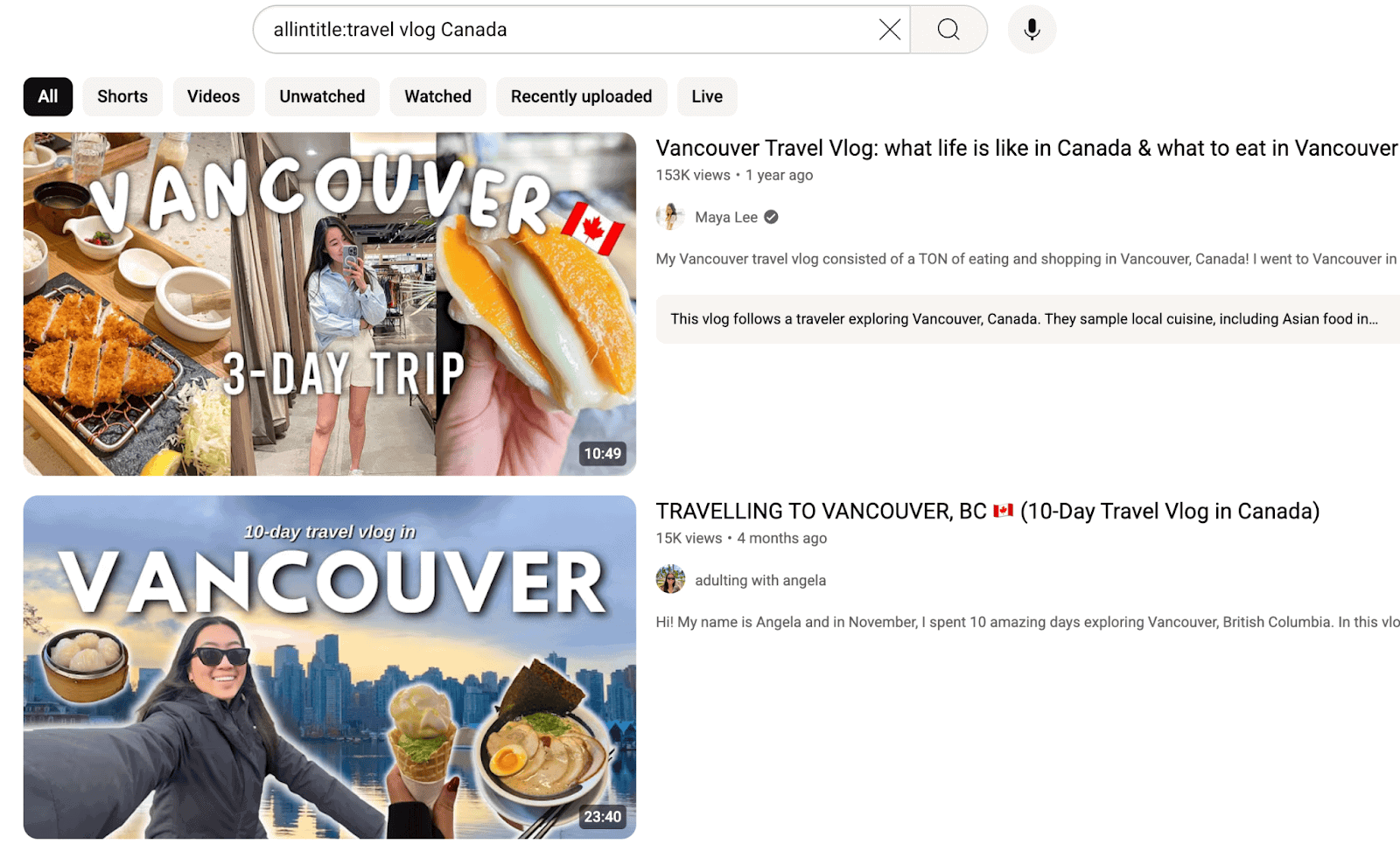
As you can see above, this particular search operator is beneficial for finding YouTube videos that include multiple specific words in their titles.
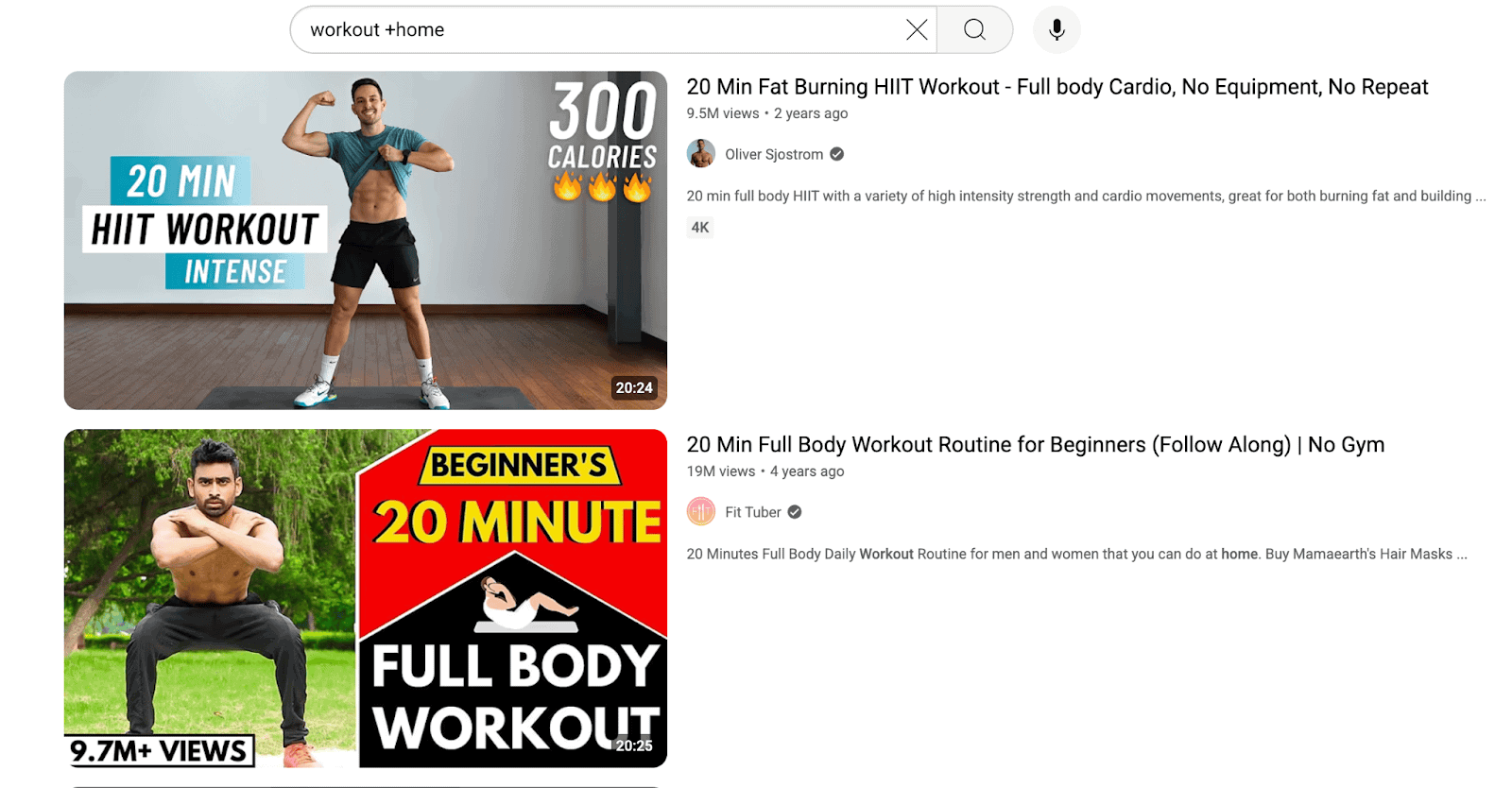
5. +word Operator
The + operator forces YouTube to include a word in all results.
Example: Searching for “workout +home” shows only workout videos that must include ‘home’.
6. -word Operator
The – operator removes unwanted words from YouTube search results.
Example: Searching for SEO -tools shows all SEO-related videos but hides any video with tools.

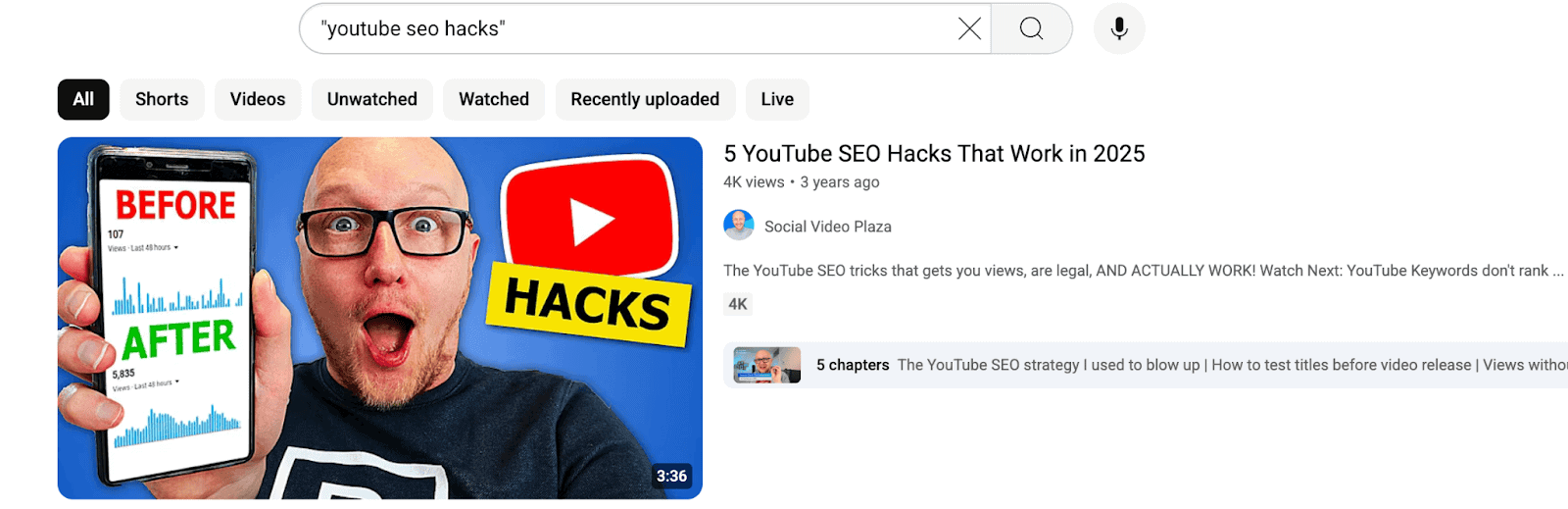
7. “search query” Operator
Quotes “ “ operator helps you find the exact phrase in the same order.
Example: Searching “YouTube SEO hacks” on YouTube shows videos with that exact phrase in the title or description.
8. description: Operator
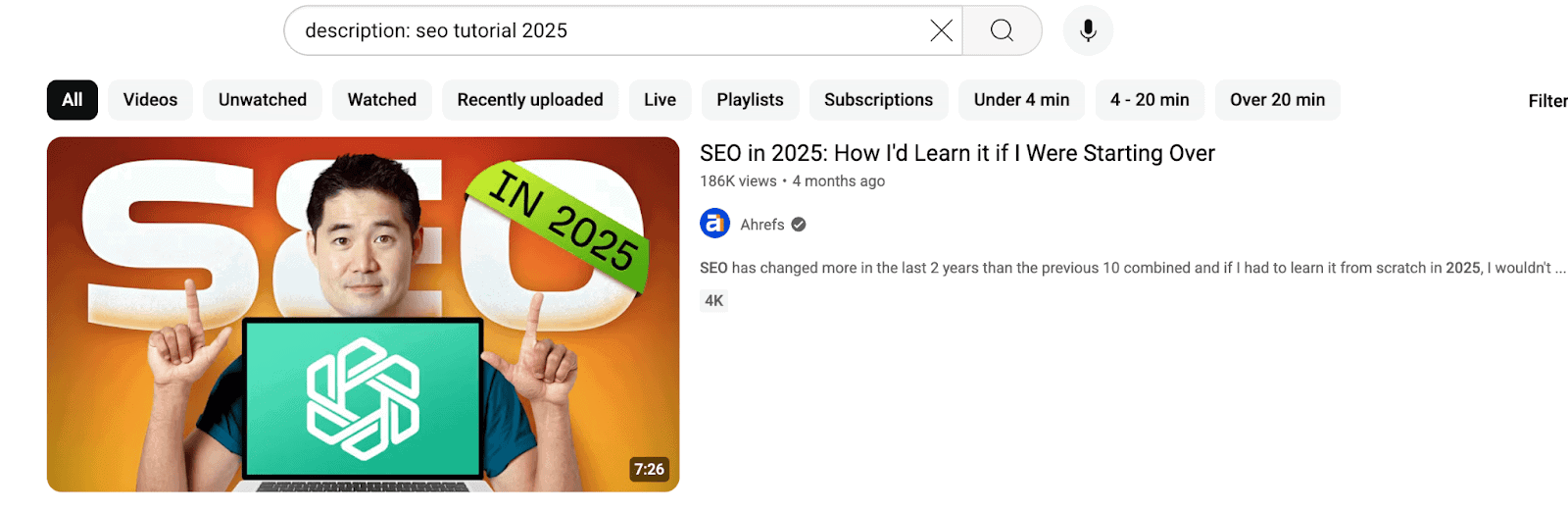
The description: operator finds videos that include a keyword in the description. You can also use quotes for multiple words.
Example: Searching description:”SEO tutorial” will show videos that mention SEO tutorial in their description.
9. Number Range #..# Operator
The #..# operator allows you to search within a specific number range, such as years or prices.
Example: Searching website builders 2015..2025 will show videos related to website builders uploaded or titled with years between 2015 and 2025.

If you create videos, these YouTube SEO Tips will help you rank higher and grow your channel faster.
10. site: Operator
The site: operator helps you search YouTube videos directly from Google.
Example: Typing ‘site:youtube.com best SEO tips’ on Google shows YouTube results for ‘best SEO tips’.

11. OR Operator
The OR YouTube search command helps you expand your search by looking for multiple keywords. It’s useful when you’re unsure which term people might use.
For example, searching diy cups OR ceramic mugs will show results with either diy cups or ceramic mugs. Please note that it searches for one term or the other, not both together.
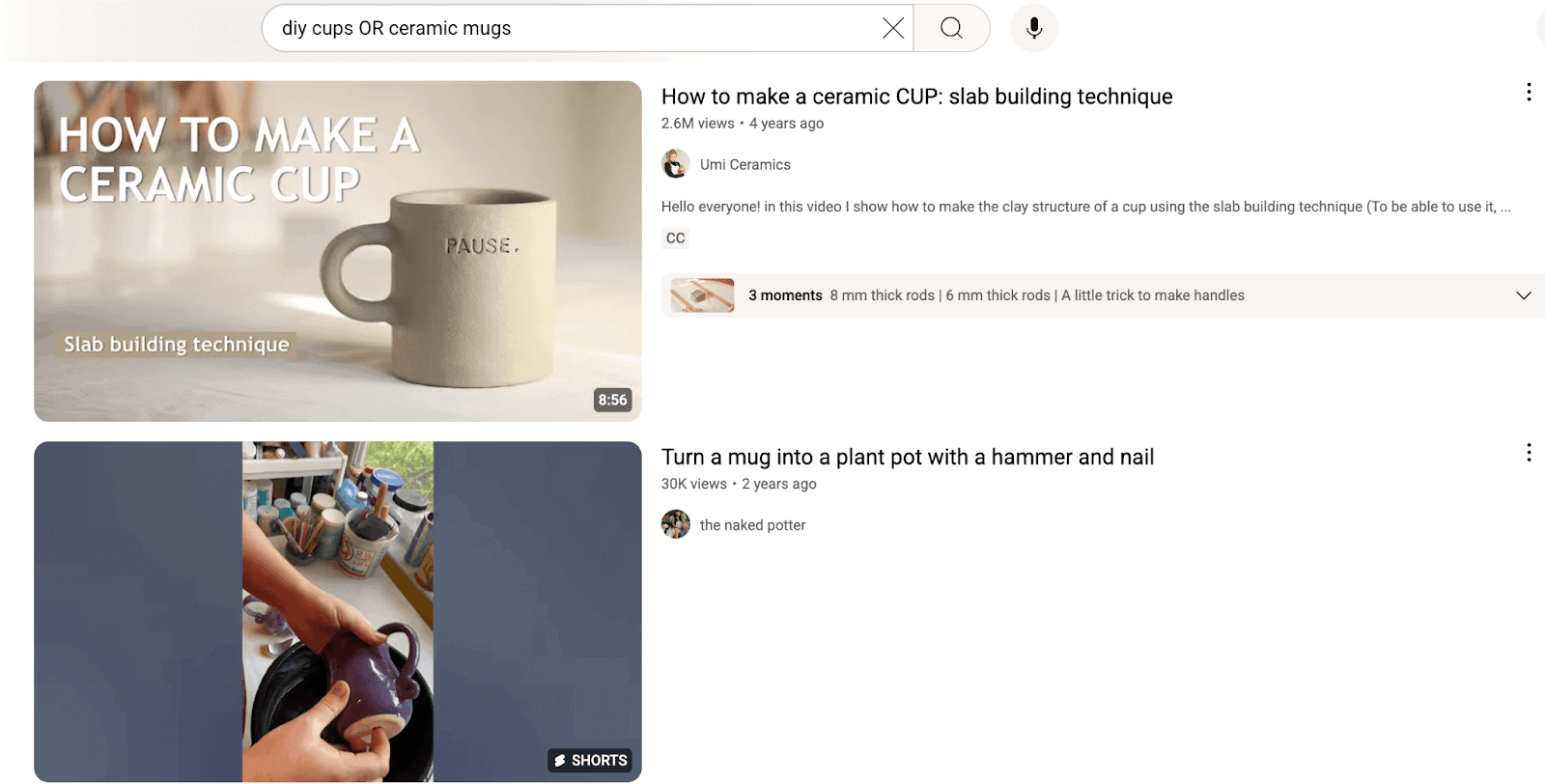
As shown above, the OR operator is quite helpful for finding YouTube videos that include one keyword or another.
12. | (Pipe) Operator
The pipe symbol (|) on YouTube works similarly to the OR operator, allowing you to search for multiple keywords at the same time. This is useful when different words can describe the same thing.
For example, “ahrefs tutorial” | “semrush tutorial” will display all YouTube video results containing either of those complete phrases, helping you find more accurate matches.

13. () [Parentheses]
Parentheses () are used to group operators and control the order of search. This helps you combine keywords more smartly.
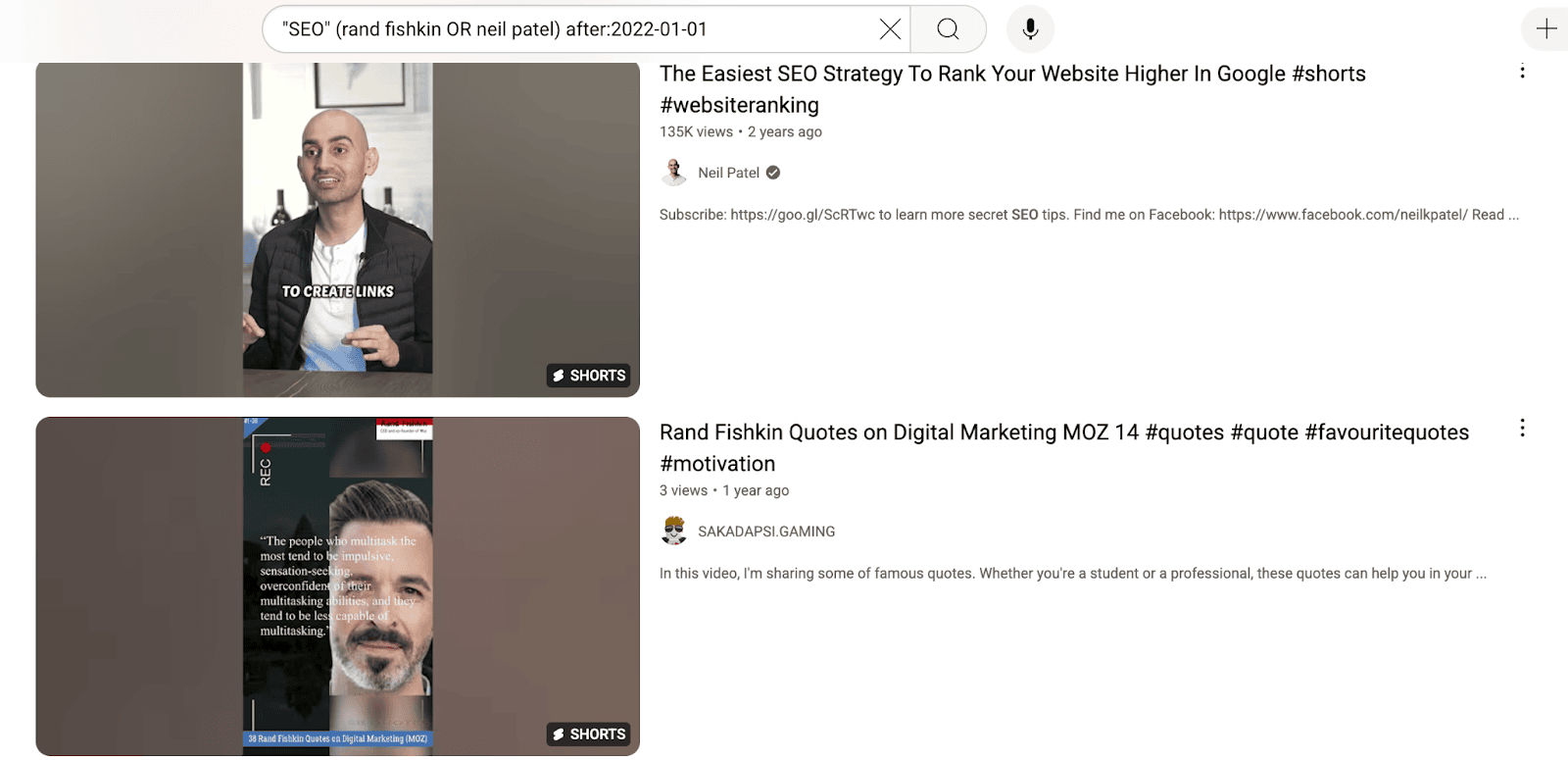
For example, using the YouTube search operator for SEO (Rand Fishkin OR Neil Patel) allows you to quickly find videos about SEO that feature either Rand Fishkin or Neil Patel.
The brackets () group the names, while the OR tells YouTube to include results for one or the other.

14. #tag Operator
Using #[tag] lets you find videos with a specific hashtag.
For example, when you search for #seo, YouTube will show all the relevant videos that include the #seo hashtag. Additionally, you can view the total number of videos and channels that use that tag.
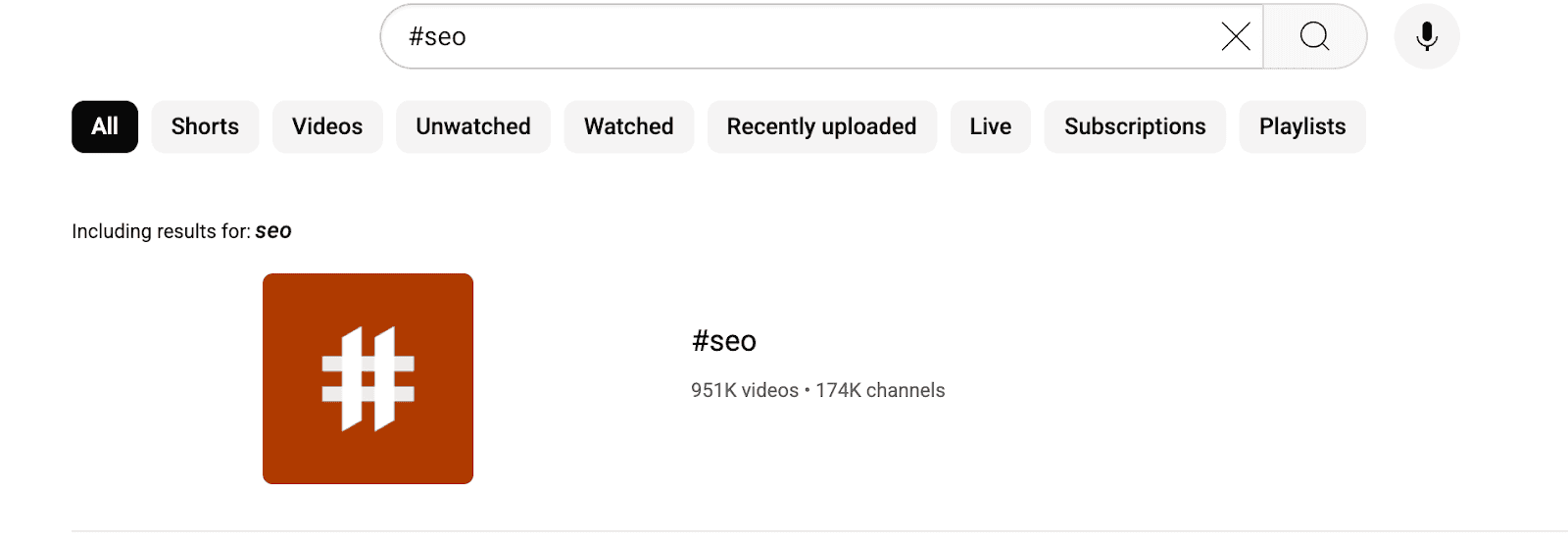
As shown above, this particular search operator makes it easy to see how popular a hashtag is and go through all related videos in one place.
You can also combine multiple YouTube search operators to find relevant videos faster.
For example, you might use quotes for exact phrases, the OR or pipe | operator for multiple keywords, and the before/after operators to set a date range at the same time.
This way, you can quickly narrow down YouTube search results and avoid wasting time on unrelated videos.
For instance, searching “SEO” (rand fishkin OR neil patel) after:2022-01-01 will bring you only recent SEO videos from either expert.
Advanced Search on YouTube
YouTube doesn’t have a traditional advanced search page, but users can combine search operators with built-in filters (like upload date or duration) for similar results.
Here’s a quick tutorial on refining your searches directly in the YouTube search bar using advanced search filters.
After you search for videos on YouTube, you can use filters to narrow down the results. Just click the “Filter” button at the top of the results page.
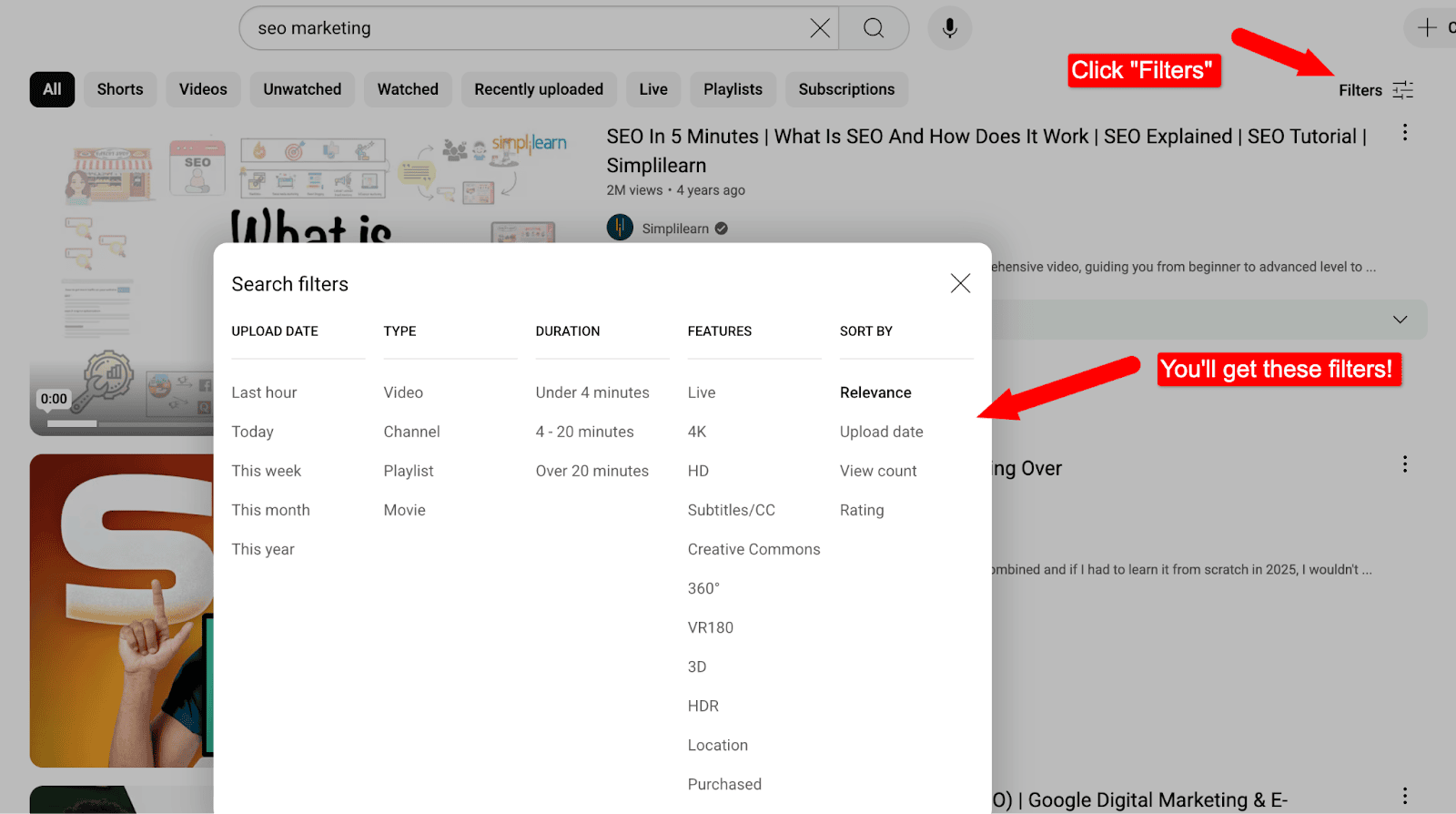
You can choose to see only videos, playlists, movies, or channels.
There are five types of filters:
- Upload date: Pick videos by when they were uploaded, i.e., last hour, today, this week, this month, or this year.
- Type: Choose what kind of videos you want to see, including videos, channels, playlists, or movies.
- Duration: Filter videos by length, under 4 minutes, 4–20 minutes, or over 20 minutes.
- Features: Discover videos with additional features, such as 3D, subtitles, Creative Commons licenses, or live streams.
- Sort By: Change the order of results by upload date, view count, rating, or relevance (default).
For example, if you want to watch more than one “SEO marketing” video, select “Playlist” under “Result Type” to find a full playlist.
Here’s a quick look at the FIVE YouTube advanced filters that help refine your searches:
15. Upload Date Filter
The Upload Date filter lets you search for videos based on when they were uploaded.
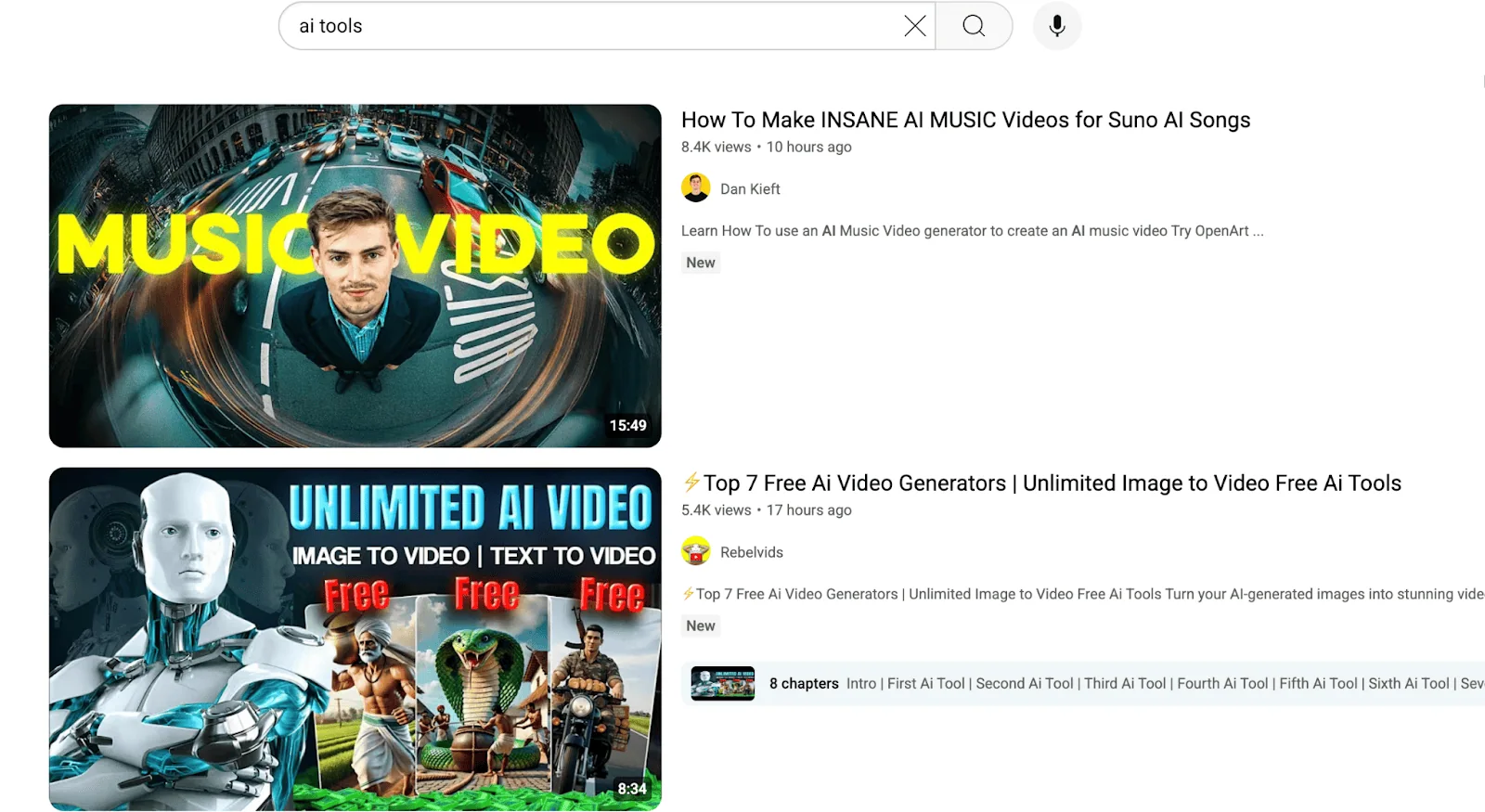
For example, choosing “Today” while searching for AI tools will only show the most recent uploads from the past 24 hours.
16. Type Filter
The Type filter helps you select the type of content you want (videos, channels, playlists, or movies).
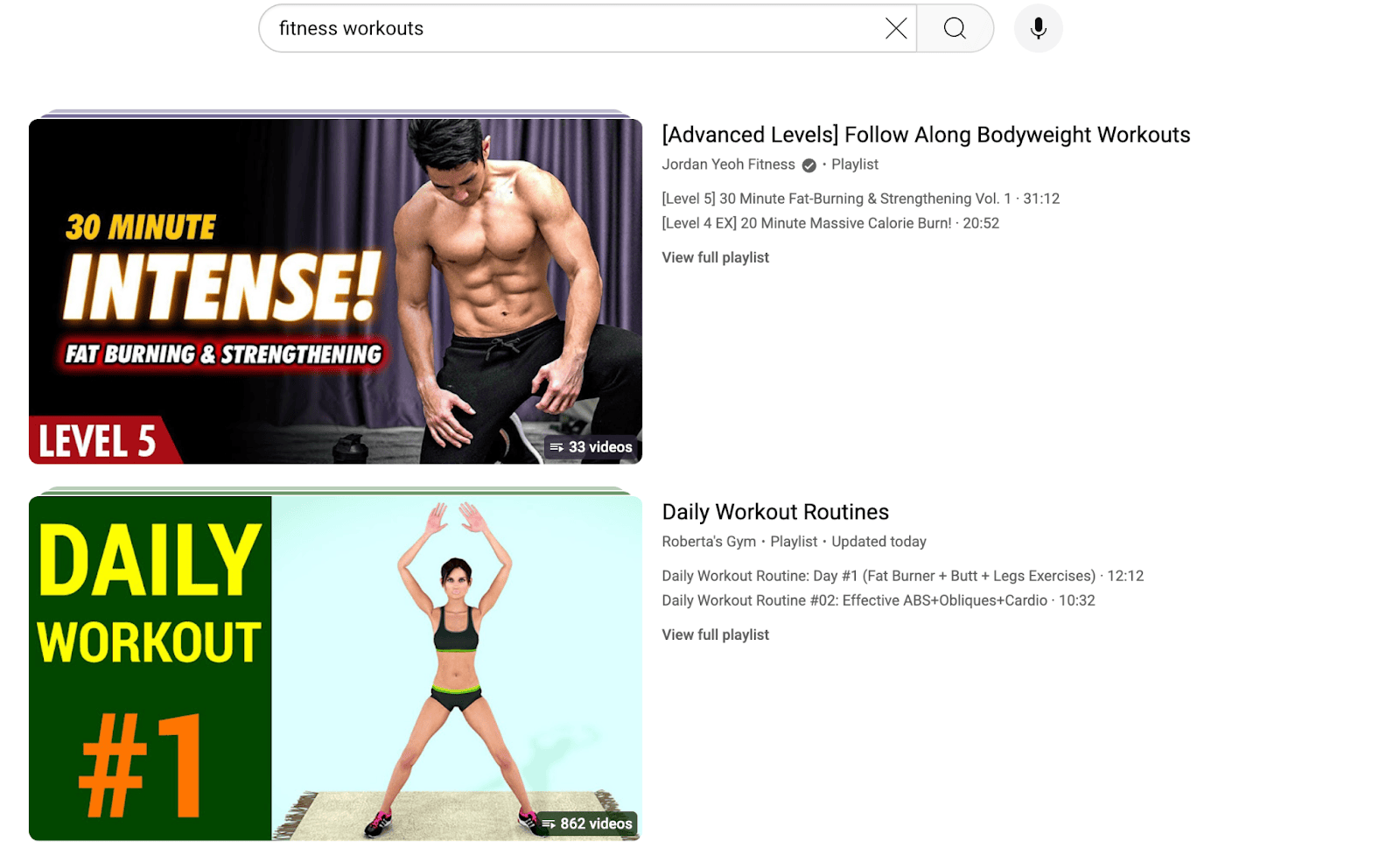
For example, searching for fitness workouts and selecting Playlists will show only collections of videos related to fitness.
17. Duration Filter
The Duration filter sorts videos by length: under 4 minutes (short), 4–20 minutes (medium), or over 20 minutes (long).
For example, if you search for “SEO tutorial” and select Over 20 minutes, YouTube will show in-depth tutorials instead of short clips on SEO.

18. Features Filter
The Features filter allows you to refine results by features such as subtitles, 4K, 3D, etc.
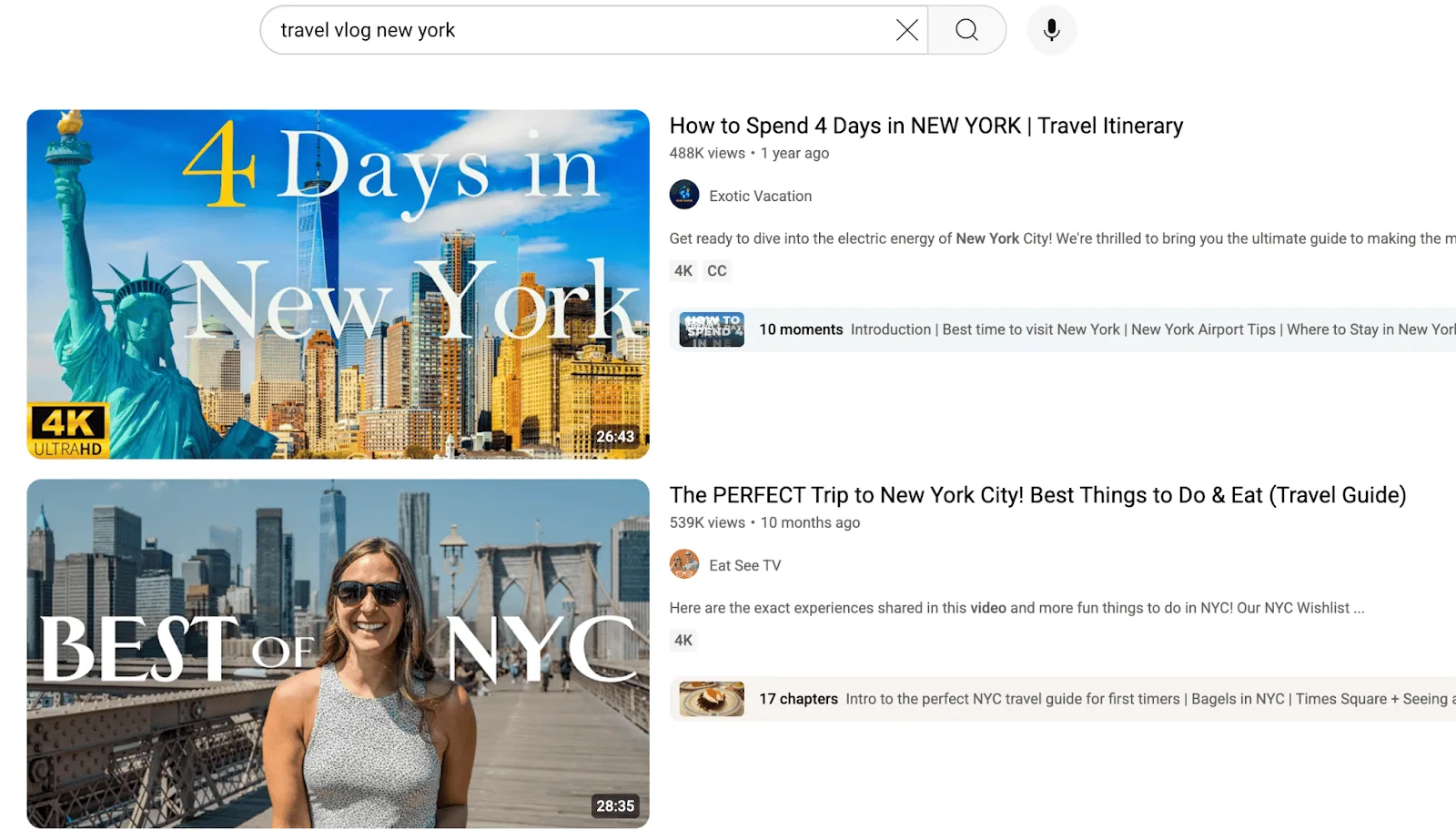
For example, searching for travel vlog New York with 4K selected shows only videos with 4K high-quality travel vlogs on New York city.
19. Sort By Filter
The Sort By filter allows you to change how results are displayed by relevance (default), upload date, view count, or rating.
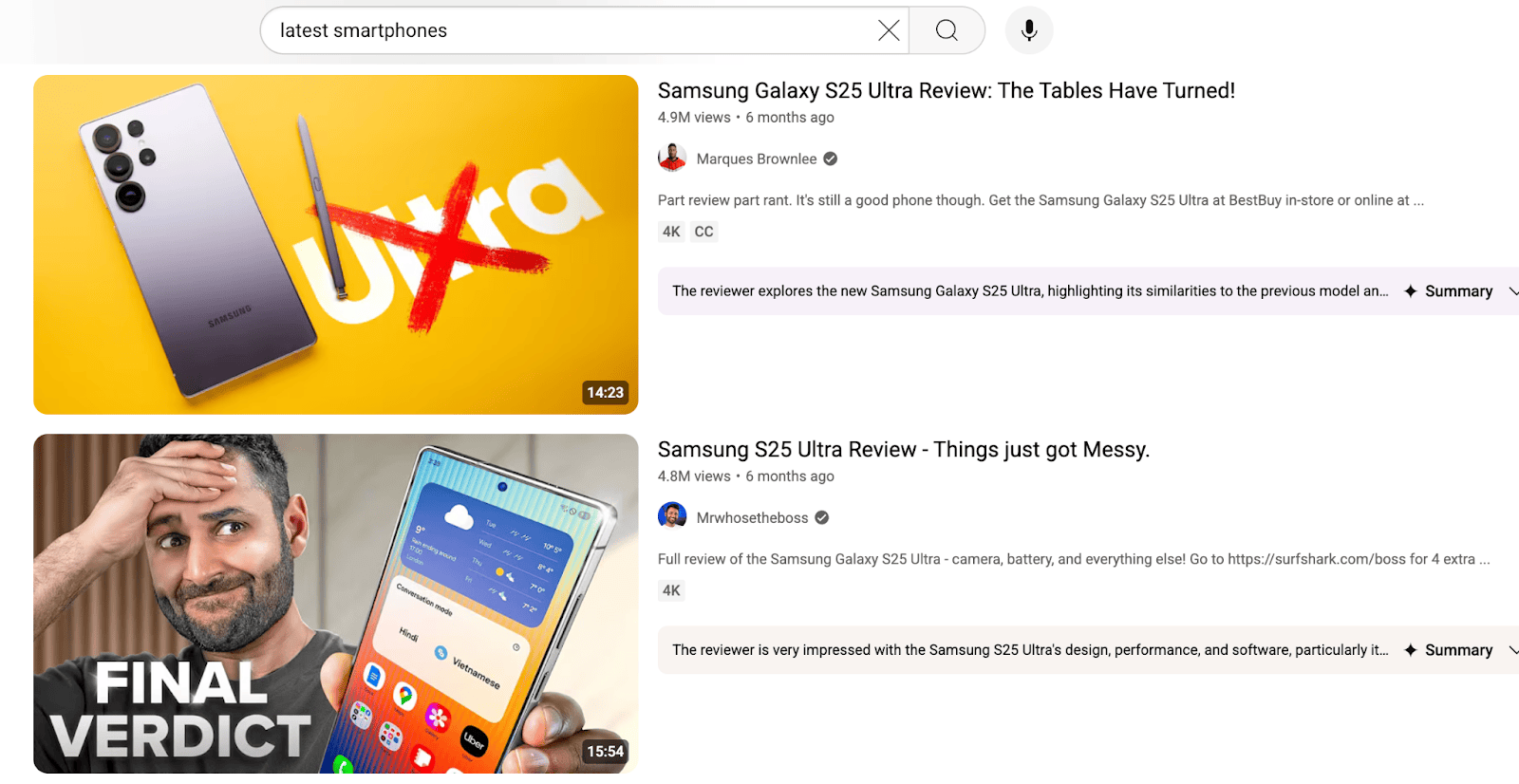
For example, if you search for the latest smartphones and choose “View count”, you’ll see the most popular reviews first, while “Upload date” shows the newest ones.
These advanced YouTube search filters help you find exactly what you’re looking for faster, especially when there are too many results to go through one by one.
Conclusion
Using search operators on YouTube makes it easy to find what you want quickly. These commands help you skip random videos and get the best results.
Here’s a quick tip: Try mixing operators like quotes, -, or OR to narrow your search. You’ll save a lot of time and discover more videos you’ll love.
Don’t forget to bookmark this post so you can quickly come back for future use.
Have any questions? Please let us know if you’re aware of any additional search operators or YouTube hacks.
FAQs
Here are some frequently asked questions on YouTube search operators.
Just type the search operator in the YouTube search bar to filter your results. For example, use quotes to search exact phrases like “digital marketing”.
The simplest way to find the information of a YouTube channel owner is to go to their channel’s About section. They either include a name, social media profiles, or a website address.
Yes, you can use advanced search parameters on YouTube. You can filter by the type of content (like upload date, video features, playlist, or duration).
YouTube search operators are special commands (like -, OR, or ” “) that help you narrow down results.
The most common ones are ” ” to find videos with exact phrases, – to exclude terms, and OR to search for either of two topics.






Leave a Comment
Your email address will not be published. Required fields are marked *